

Add and manage tasks
A to-do list for each car: parts to buy, work to do, errands and fees.
Add a task
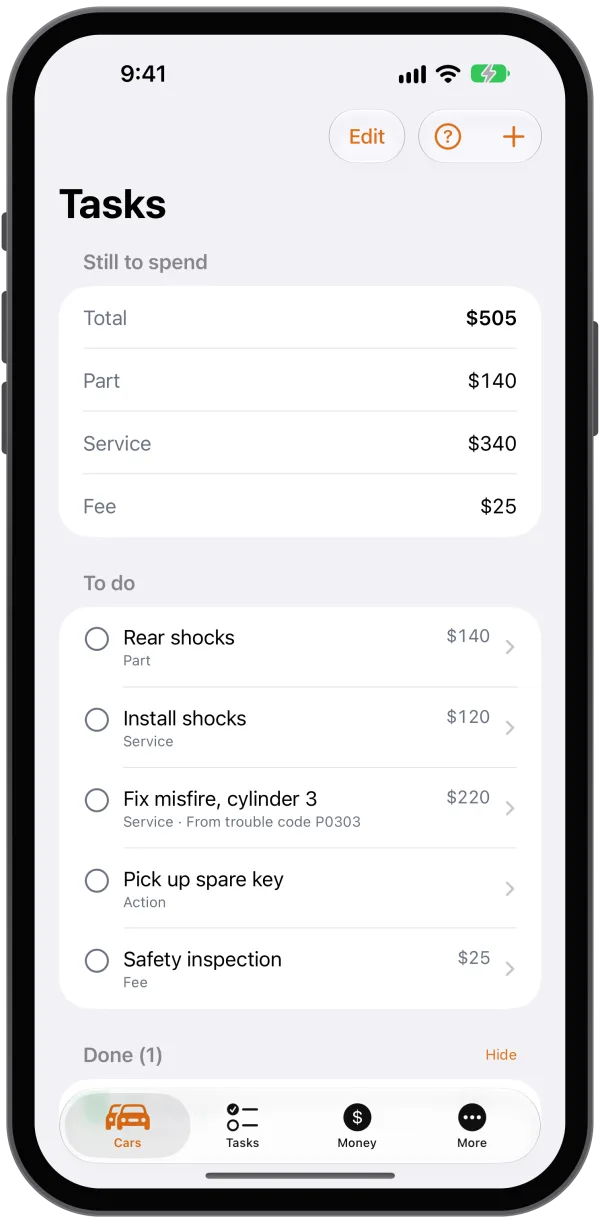
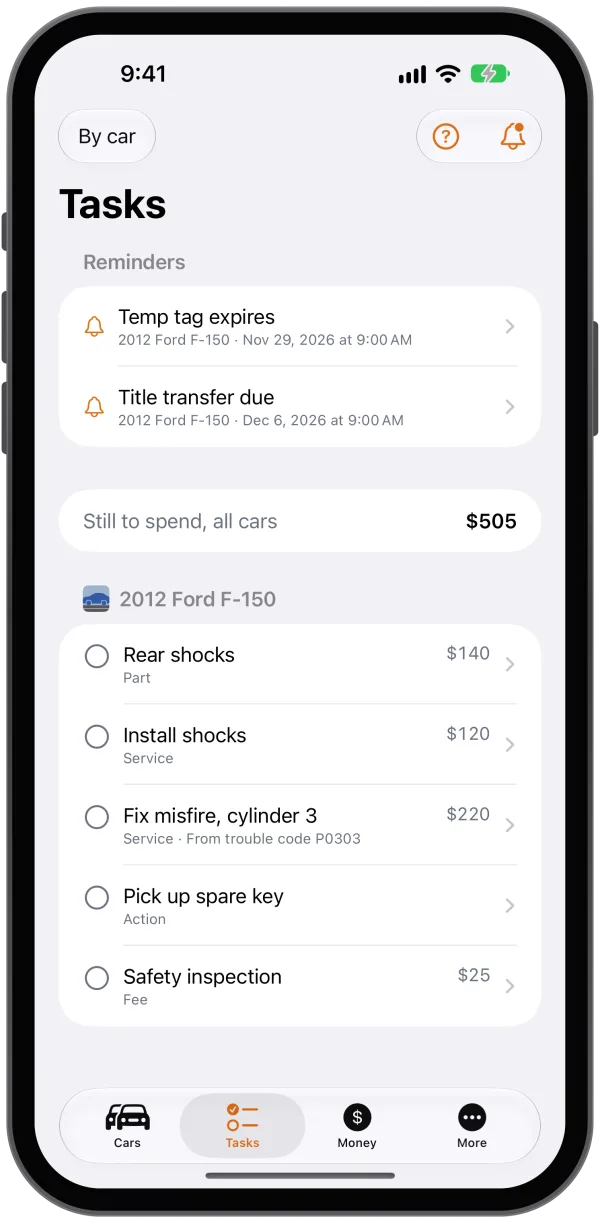
- Open the car and tap Tasks, then + (Add task).
- Type the Task: what needs doing.
- Pick the Type: Part, Service, Action (errands, paperwork) or Fee.
- Optional: Estimated cost (optional) and notes.
- Tap Add.
Tasks also come from the inspection, trouble codes and recalls (Make a task); they show where they came from.
Manage tasks
- Still to spend totals open tasks’ amounts, by type. It feeds expected profit.
- Tap Edit to drag tasks into order. Swipe left to delete (with Undo).
- Done tasks stay below; tap Hide to hide them.
- The Tasks tab shows every car’s open tasks together, by car or by type, with reminders at the top.
Still stuck? In the app, go to More > Contact Support (it emails us with the error log attached; you see the email first), or email contact@setriksoftware.com. You can also browse the Help Center or the messages the app can show.