

Add and tag photos
Keep before, after and damage photos, and pick the cover photo.
Add photos
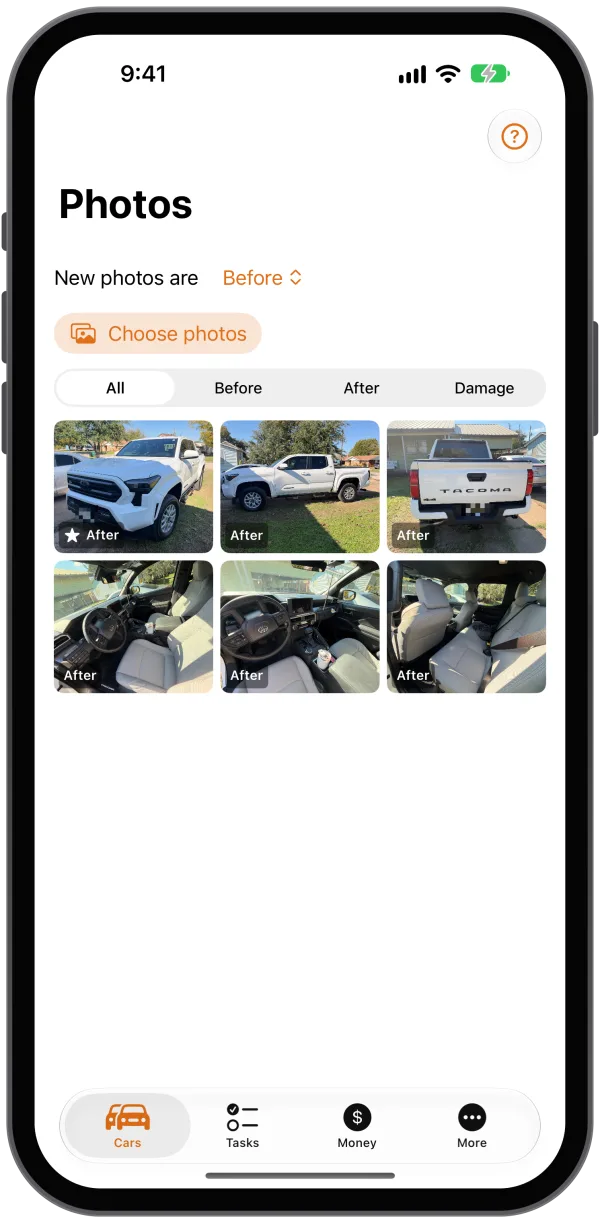
- Open the car and tap Photos.
- Set New photos are to Before, After or Damage.
- Tap Choose photos (several at once) or Take a photo.
Tag, cover and delete
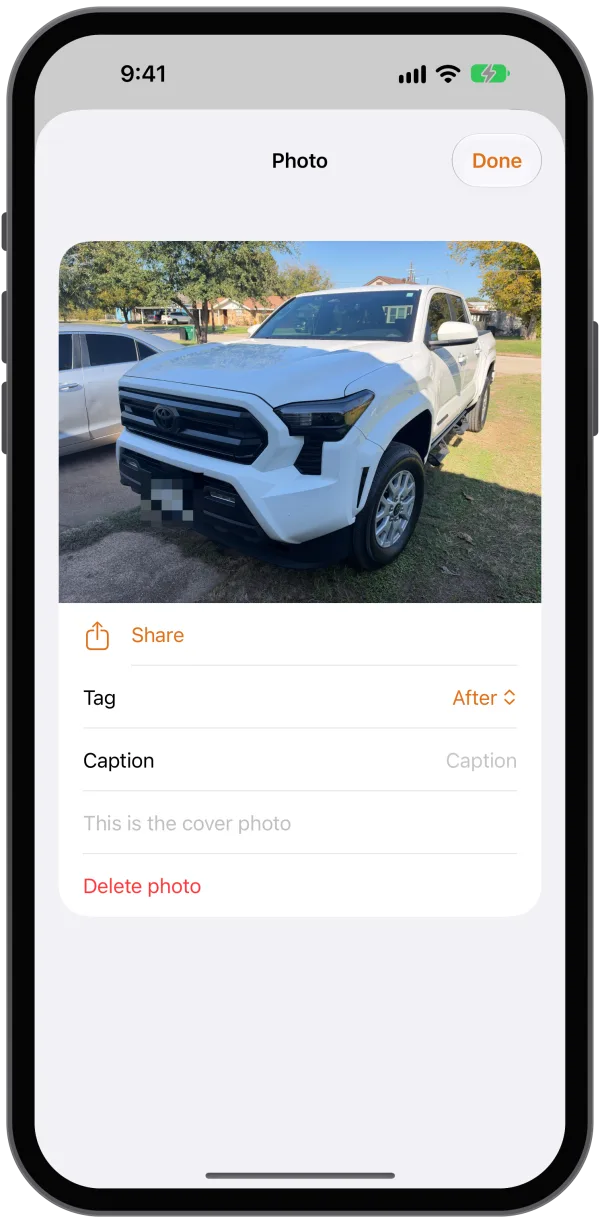
- Tap a photo.
- Change its Tag or Caption.
- Tap Make it the cover photo to use it on the car page, ad image, flyer and shared page.
- Delete photo removes it (with Undo).
Filter by All, Before, After or Damage at the top. Inspection items, tasks and receipts can have their own photos too.
Still stuck? In the app, go to More > Contact Support (it emails us with the error log attached; you see the email first), or email contact@setriksoftware.com. You can also browse the Help Center or the messages the app can show.