
SellingFlip Binder Pro
Share a car page
Publish the listing as a web page with its own link and QR code. Buyers need no app.
Steps
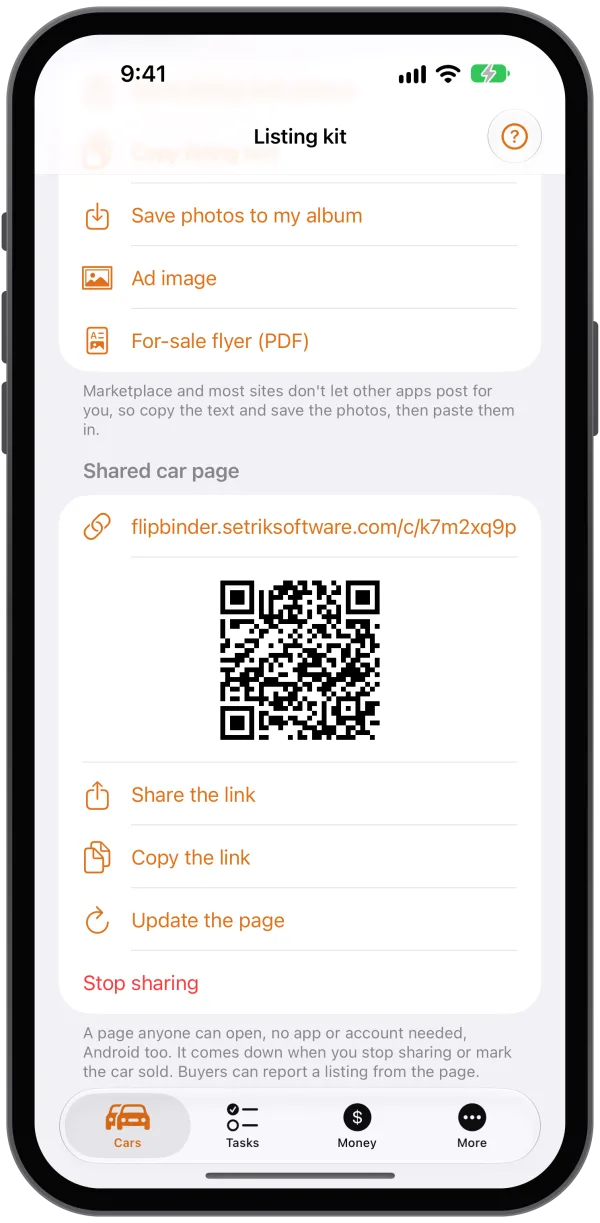
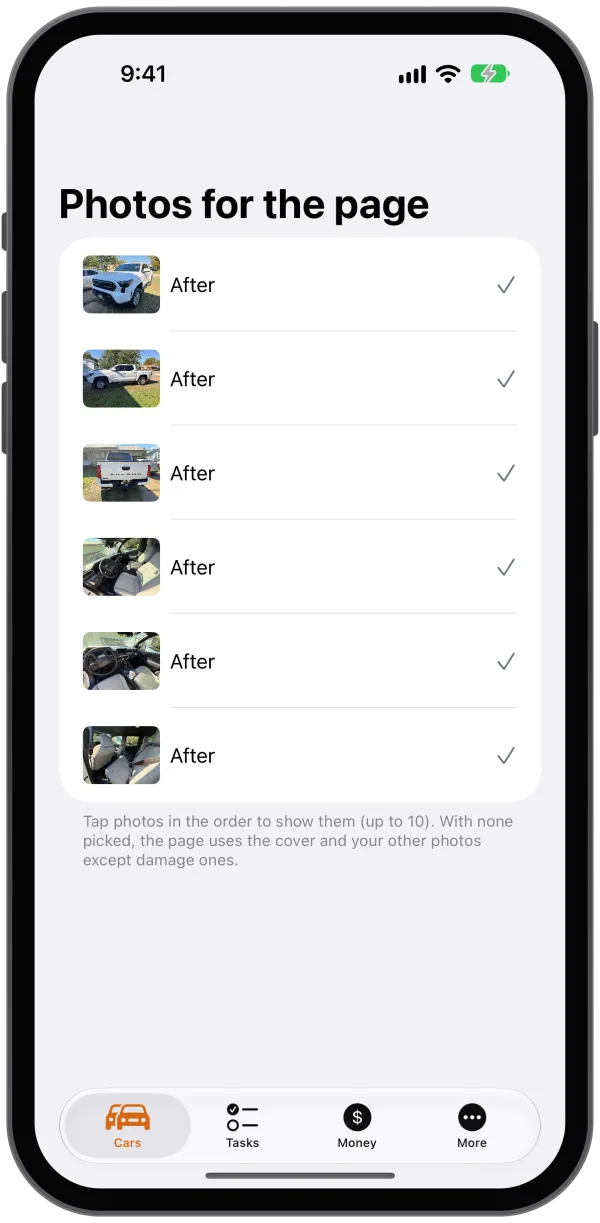
- Open the car’s Listing kit and scroll to Shared car page.
- Optional: tap Choose photos for the page and tap photos in the order to show them (up to 10).
- Tap Share this car (page with link and QR code).
- Tap Share the link or Copy the link, or show the QR code.
The page shows the photos, price, mileage, description, highlights, where else it’s listed and the contact you chose. Anyone can open it on any phone or computer. Buyers can report a listing from the page.
Changed the listing?
When you change the price or text, “Page is out of date” appears. Tap Update the page.
If something goes wrong
“Sign in to iCloud in the Settings app to share a car page.” The page is published through your iCloud account. See Troubleshooting.
Still stuck? In the app, go to More > Contact Support (it emails us with the error log attached; you see the email first), or email contact@setriksoftware.com. You can also browse the Help Center or the messages the app can show.