

Edit checklist templates
Change the before-buying, ready-for-sale and sale checklists for future cars.
Each checklist has a template. New cars get a copy; cars already started keep their own list.
Steps
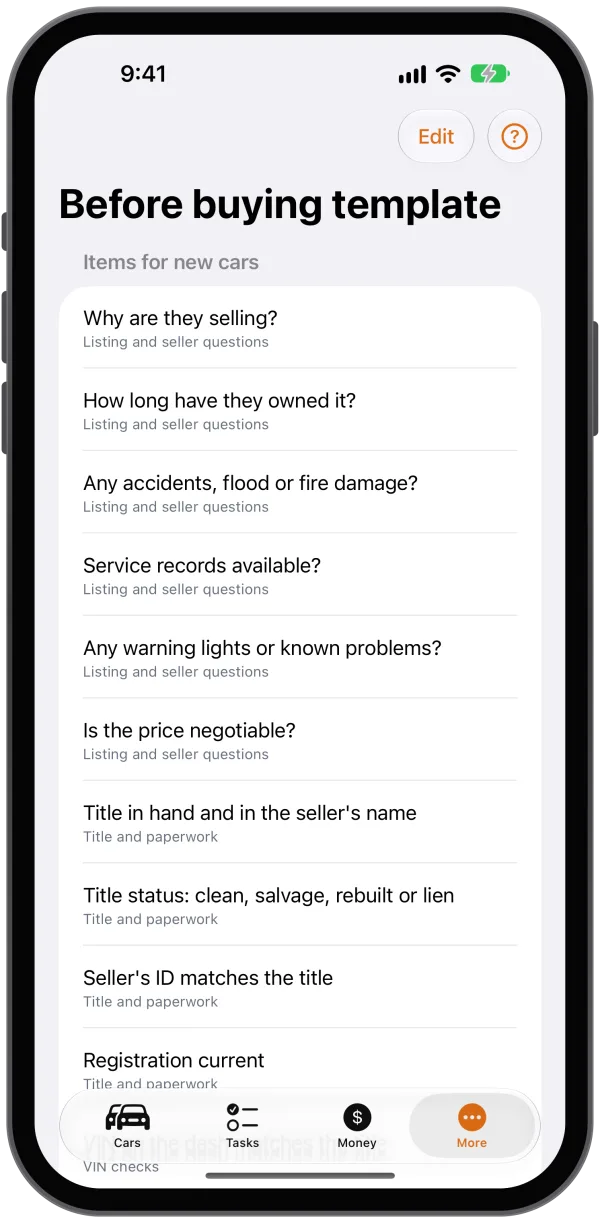
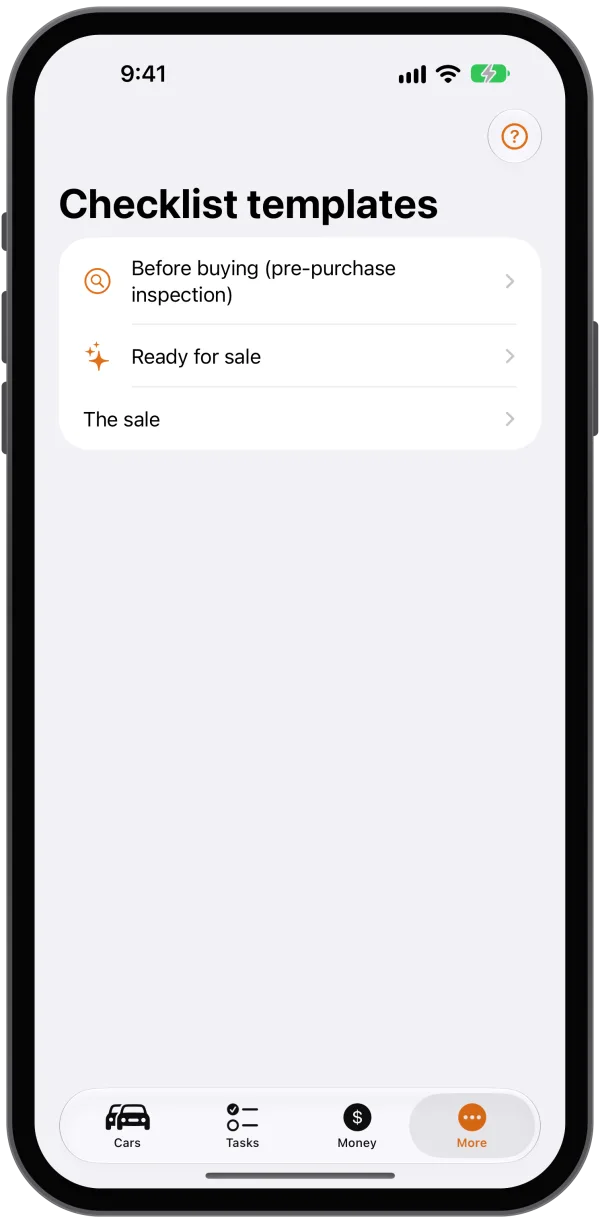
- Go to More > Checklist templates and pick one (or tap Edit the template for future cars at the bottom of a car’s checklist).
- Tap an item to rename it.
- Tap Add an item to add your own, with a group.
- Tap Edit to drag items into order.
- Swipe left to remove an item.
Removed items and defaults
Built-in items you remove are listed under Removed items; tap Add back. Restore all defaults brings back every built-in item in its original order and keeps your own items at the end.
New suggested items
When an update adds built-in items, the template offers them. Tap to add them, or Not now.
To change one car only, use Add an item just for this car or Skip on its checklist.
Still stuck? In the app, go to More > Contact Support (it emails us with the error log attached; you see the email first), or email contact@setriksoftware.com. You can also browse the Help Center or the messages the app can show.