

Move a car through its stages
Lead, Inspected, Bought, Listed, Sold or Passed: keep each car in the right place.
The Cars tab groups your cars by stage, so you always see what needs doing.
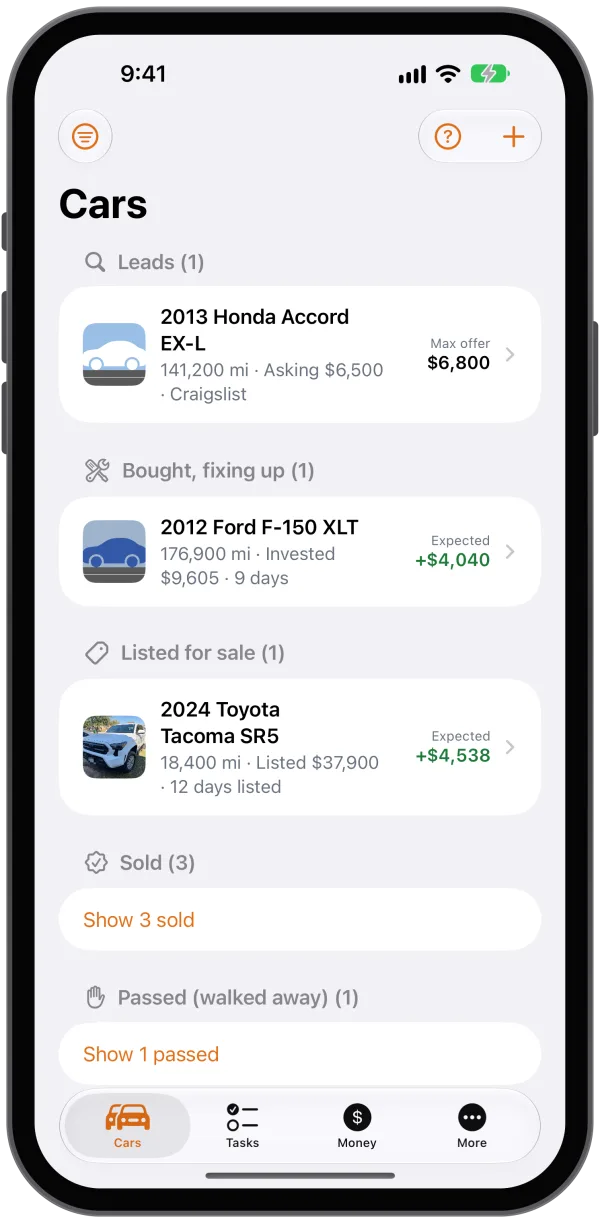
| Stage | Means |
|---|---|
| Lead | A car you found and are looking at |
| Inspected | Looked at it, decided to go ahead or make an offer |
| Bought | You own it and are fixing it up |
| Listed | It’s for sale |
| Sold | Sale done; profit is final |
| Passed | You walked away |
Steps
- Open the car.
- Tap Stage near the top and pick the new stage.
Good to know
- Moving to Bought or Listed sets the purchase date to today if it’s empty; moving to Sold sets the sale date the same way. Change them on Purchase and sale.
- Sold and Passed cars are folded away on the Cars tab and stop getting reminder nudges.
- Adding a listing link to a Bought car moves it to Listed for you.
- Use the sort and filter button at the top left of the Cars tab to sort by days owned or profit, or show one stage.
Still stuck? In the app, go to More > Contact Support (it emails us with the error log attached; you see the email first), or email contact@setriksoftware.com. You can also browse the Help Center or the messages the app can show.