

Fill in a car from its VIN
Type or scan the VIN to fill in the year, make, model and trim, and catch a VIN that doesn't match.
Flip Binder looks the VIN up with the free U.S. government (NHTSA) service. It saves typing and warns you when the VIN doesn’t match the listing.
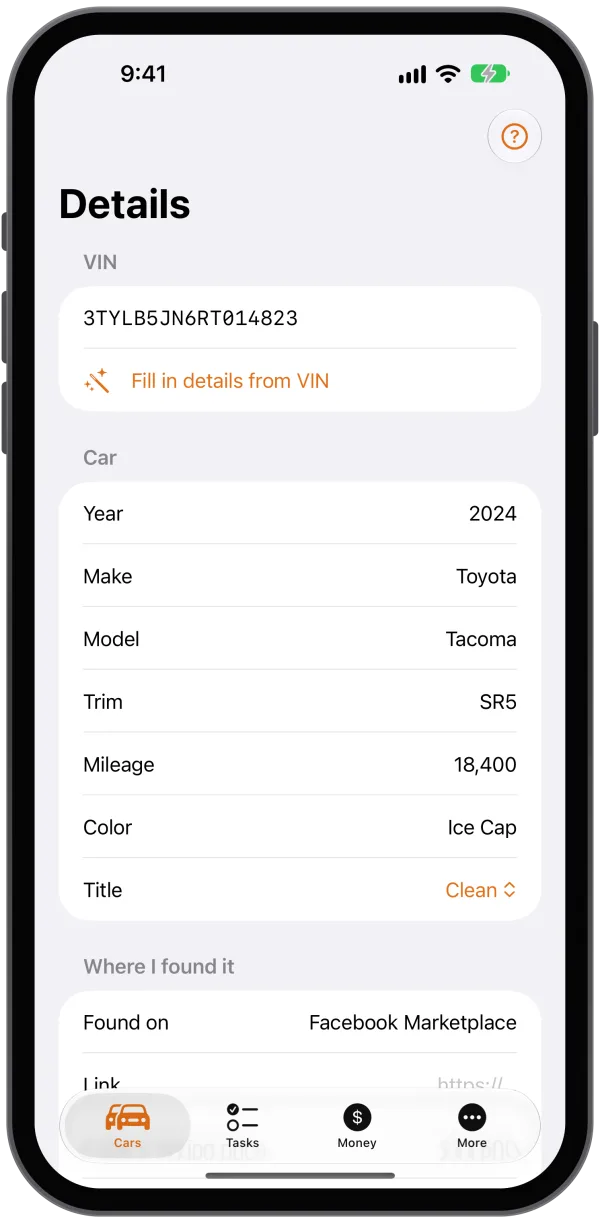
Steps
- Open the car’s Details and VIN (or start Add a car).
- Type the 17-character VIN, or tap the barcode button to scan it. See Scan a VIN barcode.
- Tap Fill in details from VIN.
When it worked
Found: shows the year, make, model and trim. Empty fields fill in; anything you already typed stays as it is.
If the VIN doesn’t match
If what you typed differs from the VIN, you’ll see “VIN says …” in yellow. Tap Use these to take the VIN’s details or Keep mine. A mismatch can mean a typo, or a seller to be careful with.
If something goes wrong
- “This VIN doesn’t look right”: a typo is likely. VINs have 17 characters and never use I, O or Q.
- “Couldn’t look this up right now”: no signal or the service is down. Type the details yourself, or tap Try again later.
- “No details found for this VIN”: older (before 1981) and some imported cars aren’t in the service. Type the details.
The lookup is never required; a car always saves without it.
Still stuck? In the app, go to More > Contact Support (it emails us with the error log attached; you see the email first), or email contact@setriksoftware.com. You can also browse the Help Center or the messages the app can show.