

Add a car
Start tracking a car, from a lead you're looking at to one you already own.
Add every car you look at, even the ones you might not buy. Leads are where the maximum offer and the inspection help most.
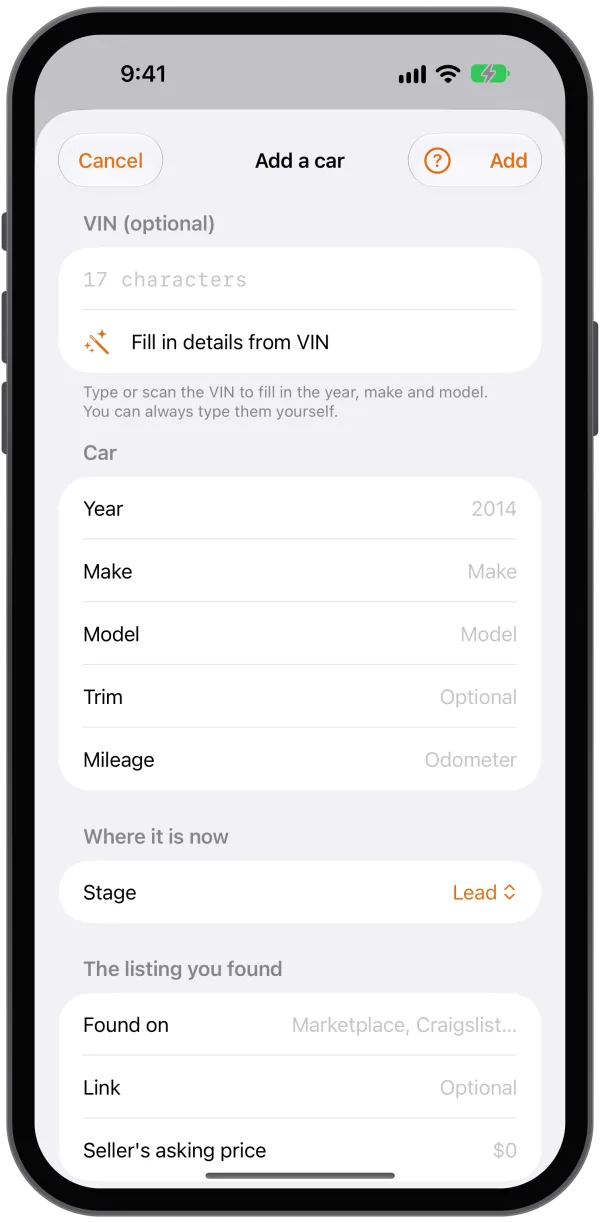
Steps
- On the Cars tab, tap + (Add car) at the top.
- Optional: type or scan the VIN and tap Fill in details from VIN to fill in the year, make and model. See Decode a VIN.
- Fill in or check Year, Make, Model, Trim and Mileage.
- Under Where it is now, pick the Stage: Lead, Inspected, Bought or Listed.
- For a lead, fill in Found on (Marketplace, Craigslist, an auction), the Link and the Seller’s asking price.
- Tap Add.
When it worked
The car’s page opens. Add guide values next to see your maximum offer.
Tips
- Every field can be changed later from the car’s Details and VIN screen.
- There’s no limit on cars, free or Pro.
Still stuck? In the app, go to More > Contact Support (it emails us with the error log attached; you see the email first), or email contact@setriksoftware.com. You can also browse the Help Center or the messages the app can show.